
A scorecard is the set of criteria your hiring team rates candidates against. Instead of comparing gut feelings, everyone rates the same things, so you get a consistent, side-by-side view of how each candidate measures up.
Each scorecard is organized into categories, and each category holds the criteria your team rates. Ratings use a 1 to 5 scale, where 5 is the strongest.
Where to find scorecards
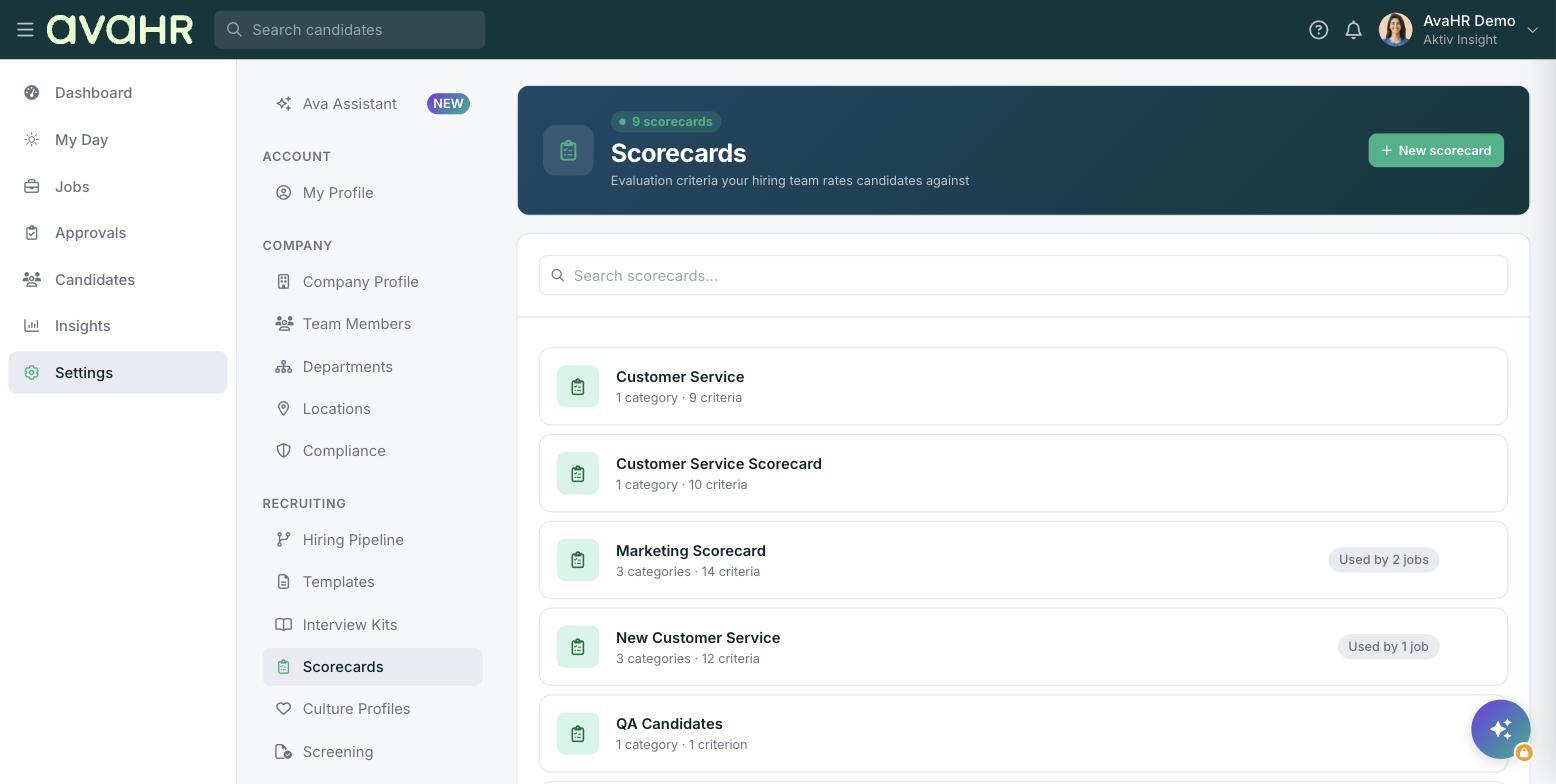
Go to Settings in the left sidebar, then open Scorecards under Recruiting. The page is titled Scorecards with the line "Evaluation criteria your hiring team rates candidates against."
Each scorecard row shows its name, a count like "N category / N criteria," and "Used by N jobs" when it is attached to jobs.
Create a scorecard
- Click New scorecard in the top right.
- Give the scorecard a name that describes what it evaluates.
- Add categories to group your criteria, for example "Culture fit" or "Technical skills."
- Under each category, add the individual criteria your team will rate 1 to 5.
- Save when you are finished.
How your team uses a scorecard
You can put a scorecard to work in two ways:
- As a stage automation. Set a pipeline stage to request a scorecard from selected team members, so they are asked to rate every candidate who reaches that stage. See Pipeline Triggers.
- Through interview evaluations. Scorecards can be requested as part of an interview, from a candidate's Interviews tab.
Where results show up
Once your team rates a candidate, the results appear as Team Feedback on that candidate's Evaluations tab, so you can see everyone's input at a glance and make your decision with confidence.