---
title: User Roles
description: How roles control what each team member can see and do.
---
[Skip to content](https://knowledge.avahr.com/user-roles#main-content)
English
Show submenu for translations

- [Tickets](https://23869753.hs-sites.com/tickets-view)
- [Sign out](https://23869753.hs-sites.com/_hcms/mem/logout)
Open main navigation
Close main navigation
- [Tickets](https://23869753.hs-sites.com/tickets-view)
- [Sign out](https://23869753.hs-sites.com/_hcms/mem/logout)
- English
Show submenu for translations
- [Go to avahr.com](https://avahr.com/)
[Go to avahr.com](https://avahr.com/)
Hello. How can we help you?
- There are no suggestions because the search field is empty.
1. [Help Center](https://knowledge.avahr.com/?hsLang=en)
2. [Account Settings](https://knowledge.avahr.com/account-settings?hsLang=en)
# User Roles
## How roles control what each team member can see and do.
Roles control what each person on your team can see and do in your recruiting workspace. You assign a role to each team member, and that role decides how much access they have. Roles are managed in one place: **Settings \> Team Members**.
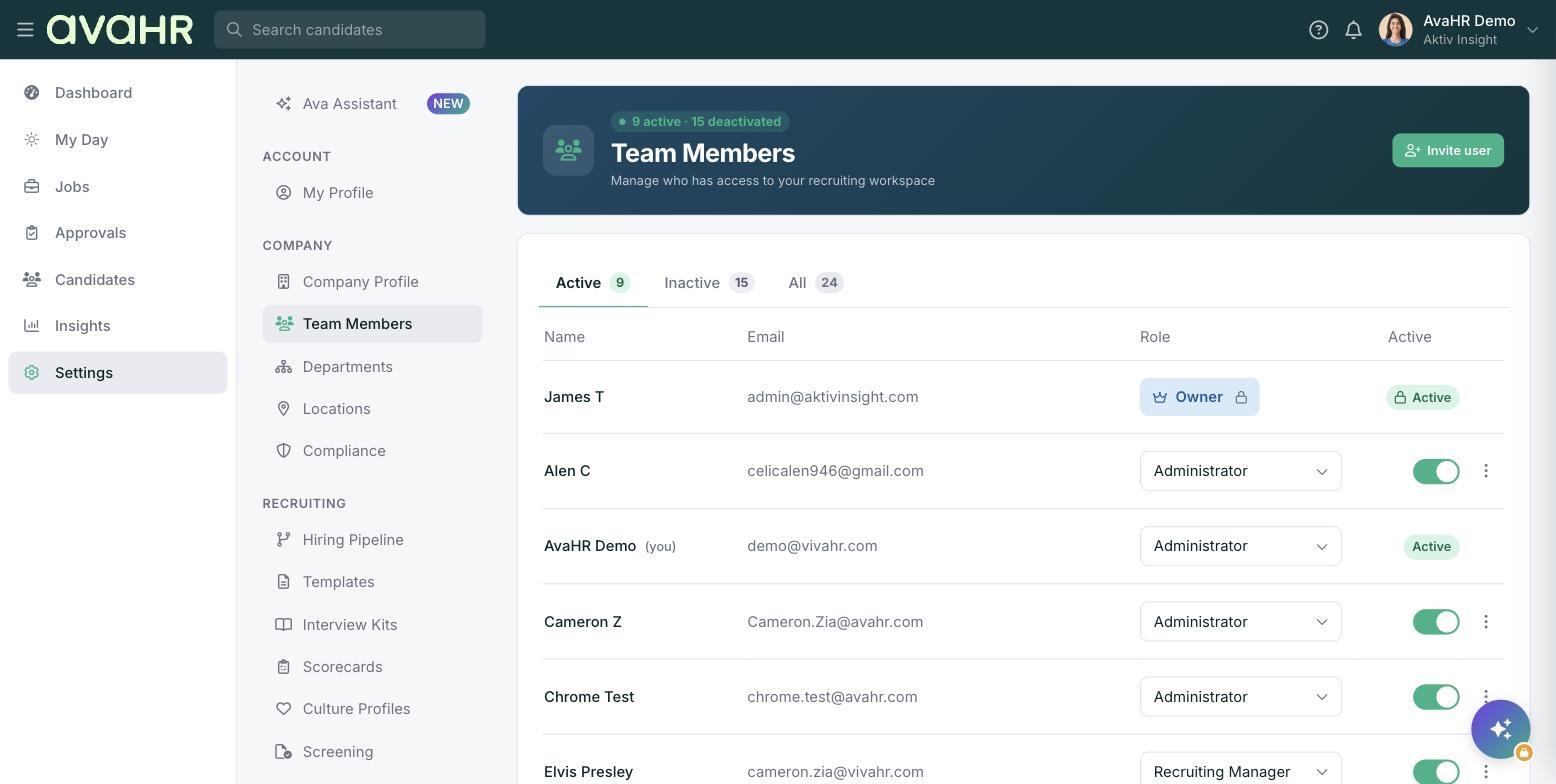
### Where roles live
1. In the left sidebar, go to **Settings**.
2. Under COMPANY, select **Team Members**.
Each person shows their name, email, a role, and an Active toggle. Use the **Active**, **Inactive**, and **All** tabs to filter the list.
### Assign or change a role
Open the **Role** dropdown next to a team member and pick a role, such as **Administrator** or **Recruiting Manager**. The change takes effect right away.
### A few things to know
- The person who created the account is the **Owner**. This role is locked and cannot be changed.
- Higher-access roles can reach settings and sensitive actions. More limited roles focus on day-to-day recruiting.
- If your plan includes custom roles, they work the same way: pick them from the same **Role** dropdown.
**Tip:** Give each person the least access they need to do their job. You can always adjust a role later.
- [Getting Started](https://knowledge.avahr.com/getting-started?hsLang=en)
- [Frequently Asked Questions](https://knowledge.avahr.com/frequently-asked-questions?hsLang=en)
- [Policies](https://knowledge.avahr.com/policies?hsLang=en)
- [Account Settings](https://knowledge.avahr.com/account-settings?hsLang=en)
- [Managing Candidates](https://knowledge.avahr.com/managing-candidates?hsLang=en#main-content)
- [Offers](https://knowledge.avahr.com/managing-candidates?hsLang=en#offers)
- [Manage Job Postings](https://knowledge.avahr.com/manage-job-postings?hsLang=en)
- [Team Collaboration](https://knowledge.avahr.com/team-collaboration?hsLang=en)
- [Insights](https://knowledge.avahr.com/insights?hsLang=en)
- [Integrations & Partners](https://knowledge.avahr.com/integrations-partners?hsLang=en)
- [WordPress Plugin](https://knowledge.avahr.com/wordpress-plugin?hsLang=en)
- [Messaging](https://knowledge.avahr.com/messaging?hsLang=en#main-content)
- [Templates](https://knowledge.avahr.com/messaging?hsLang=en#templates)
- [Recruiting](https://knowledge.avahr.com/recruiting?hsLang=en#main-content)
- [Screening](https://knowledge.avahr.com/recruiting?hsLang=en#screening)
[.png?width=117&height=24&name=AVA%20HR%20Logo%20(4).png "Chill listening crop-3")](http://vivahr.com)
Help Center
[mailto:email@email.com](mailto:email@email.com)
Copyright © 2026, AvaHR