---
title: Tagging Candidates
description: Add tags to organize candidates by skill, license, or any label, one at a time or in bulk.
---
[Skip to content](https://knowledge.avahr.com/tagging-candidates#main-content)
English
Show submenu for translations

- [Tickets](https://23869753.hs-sites.com/tickets-view)
- [Sign out](https://23869753.hs-sites.com/_hcms/mem/logout)
Open main navigation
Close main navigation
- [Tickets](https://23869753.hs-sites.com/tickets-view)
- [Sign out](https://23869753.hs-sites.com/_hcms/mem/logout)
- English
Show submenu for translations
- [Go to avahr.com](https://avahr.com/)
[Go to avahr.com](https://avahr.com/)
Hello. How can we help you?
- There are no suggestions because the search field is empty.
1. [Help Center](https://knowledge.avahr.com/?hsLang=en)
2. [Managing Candidates](https://knowledge.avahr.com/managing-candidates?hsLang=en)
# Tagging Candidates
## Add tags to organize candidates by skill, license, or any label, one at a time or in bulk.
Tags are short labels you attach to a candidate so you can group and find people your own way, by skill set, license, education, or anything else that matters to your business. For example, if an applicant holds a Series 7 license but you are not hiring for that today, tag them "series7". When a matching role opens, you can pull up everyone with that tag in seconds.
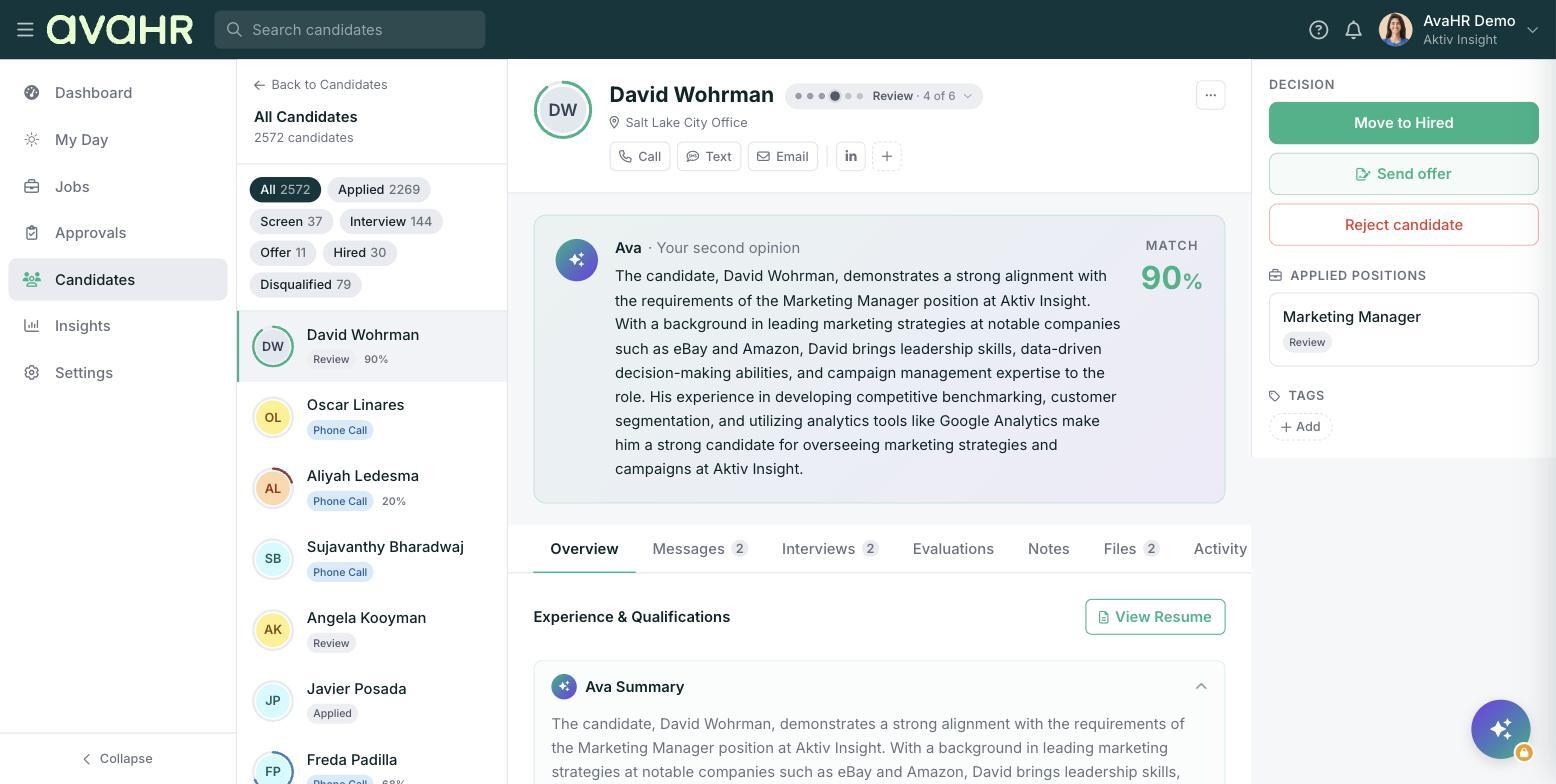
### Add a tag from the Workspace panel
1. Open the candidate's profile.
2. In the right-hand "Workspace" panel, find the "Tags" section.
3. Click "Add", type your tag, and confirm.
### Tag many candidates at once
1. Go to **Candidates** in the left sidebar.
2. Check the box next to each candidate you want to tag.
3. In the bottom toolbar ("N selected"), click "Tag" and enter the tag.
This is the fast way to label a whole group, like everyone from a hiring event.
### Tag while writing a note
On the "Notes" tab you can add a tag inline by typing "#" in front of a word. So a note mentioning "#sales" and "#manager" adds those as tags to the profile as you write. You can also use "@" in notes to mention a teammate.
**Tip:** Keep your tags short and consistent, for example always "forklift" rather than sometimes "fork-lift". Consistent tags make searching and building a Talent Pool far easier down the road.
- [Getting Started](https://knowledge.avahr.com/getting-started?hsLang=en)
- [Frequently Asked Questions](https://knowledge.avahr.com/frequently-asked-questions?hsLang=en)
- [Policies](https://knowledge.avahr.com/policies?hsLang=en)
- [Account Settings](https://knowledge.avahr.com/account-settings?hsLang=en)
- [Managing Candidates](https://knowledge.avahr.com/managing-candidates?hsLang=en#main-content)
- [Offers](https://knowledge.avahr.com/managing-candidates?hsLang=en#offers)
- [Manage Job Postings](https://knowledge.avahr.com/manage-job-postings?hsLang=en)
- [Team Collaboration](https://knowledge.avahr.com/team-collaboration?hsLang=en)
- [Insights](https://knowledge.avahr.com/insights?hsLang=en)
- [Integrations & Partners](https://knowledge.avahr.com/integrations-partners?hsLang=en)
- [WordPress Plugin](https://knowledge.avahr.com/wordpress-plugin?hsLang=en)
- [Messaging](https://knowledge.avahr.com/messaging?hsLang=en#main-content)
- [Templates](https://knowledge.avahr.com/messaging?hsLang=en#templates)
- [Recruiting](https://knowledge.avahr.com/recruiting?hsLang=en#main-content)
- [Screening](https://knowledge.avahr.com/recruiting?hsLang=en#screening)
[.png?width=117&height=24&name=AVA%20HR%20Logo%20(4).png "Chill listening crop-3")](http://vivahr.com)
Help Center
[mailto:email@email.com](mailto:email@email.com)
Copyright © 2026, AvaHR