
Questionnaires are reusable sets of questions you send to candidates early, before you spend time on interviews. Build one once, then reuse it across jobs. They live at Settings > Screening.
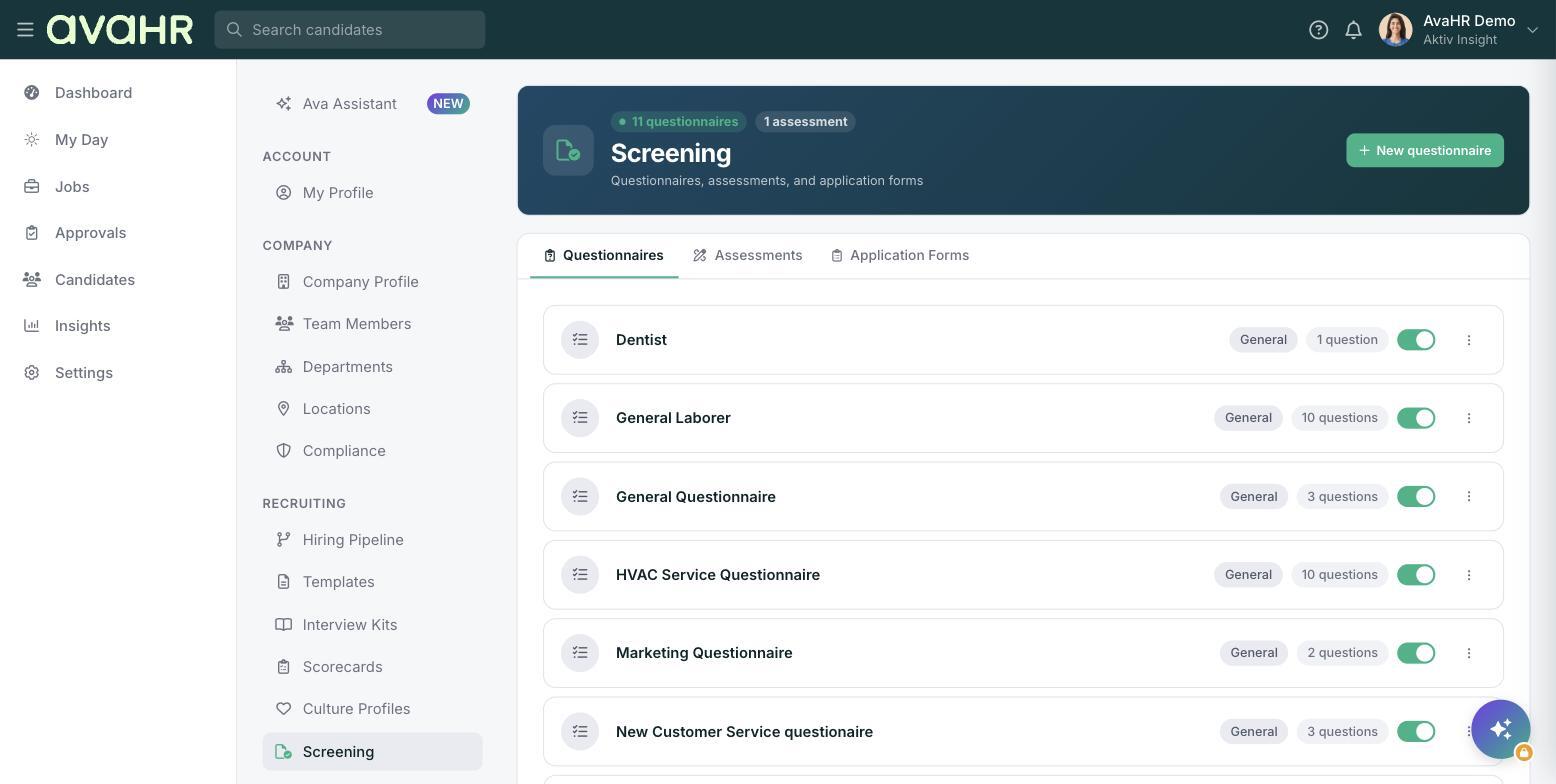
Create a questionnaire
- Go to Settings > Screening and open the Questionnaires tab.
- Click New questionnaire. Give it a name and description, and pick a Category (Screening, Culture, Technical, or General).
- Click Add Question, choose a type, and write the prompt. Reorder with the arrows, remove with the X.
- Save with Create Questionnaire. A questionnaire must be Active (not Draft) to be in use.
Question types
You can add Short answer, Long answer, Yes/No, Single choice, Multiple choice, and File upload questions. Only choice-based types (Yes/No, Single choice, Multiple choice) can be knock-outs, because they have fixed answers to flag.
Knock-out questions
Inside a choice question, check Make this a knock-out question, then turn on Disqualifies for any answer that should screen a candidate out. Add an optional Internal reason (logged on the candidate, never shown to them). You cannot flag every answer; at least one must pass. A candidate who picks a disqualifying answer completes the whole questionnaire, then is automatically moved to Disqualified after submitting. No automatic rejection email is sent.
Attaching a questionnaire
Attach a questionnaire to a job on the Description step, or send one to a candidate. A pipeline stage can also send a questionnaire automatically when a candidate reaches it.