
The Jobs area is where you create postings, send them out, and track every role you are hiring for. This guide walks you through the whole thing, from a blank job to live applicants.
The Jobs list
Open Jobs from the left menu. Every posting is listed with a status pill (Active, Draft, Paused, Closed, Pending, or Changes Requested), the hiring team on it, the location, department, salary, and a candidate count that links straight to that job's applicants. Use the status tabs to filter, and Search jobs to find one fast. Each job's three-dot menu has Edit, Duplicate, Pause Job, Resume Job, Reopen Role, Advertise, Share Job, View Live Job Posting, Close Job, and Delete.
Creating a job: Quick or Full editor
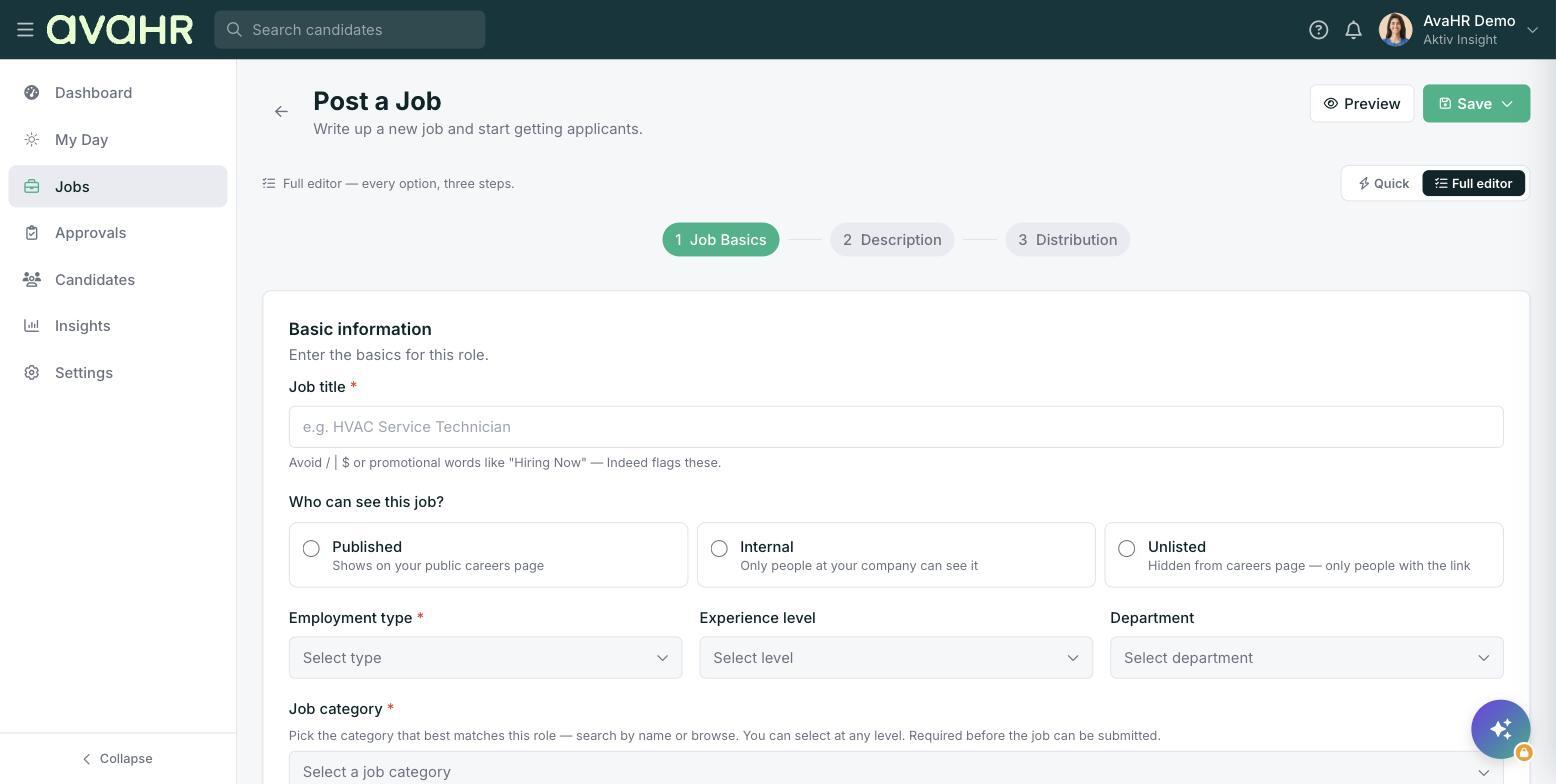
Click Post Job to open the full form, or Quick Create with Ava to start with AI help. For a brand-new job you can choose Quick (just the essentials, posts in about a minute, fills the rest from your defaults) or the Full editor (every option, in three steps).
- Job Basics. Enter the Job title (avoid symbols like / | $ and phrases like "Hiring Now", and keep it under 60 characters). Choose Who can see this job? (Published, Internal, or Unlisted), the Employment type, Experience level, Department, Job category, and Where is this job? (On-site, Hybrid, Remote, or On the road). Set the Salary and pick the Hiring pipeline. Under What applicants submit, set each item (resume, cover letter, phone, and so on) to Required, Optional, or Off.
- Description. Write the role, or click Generate with AI to have Ava draft it. Pick a Culture profile and, if you want, a Screening questionnaire.
- Distribution. Leave Free job boards on to reach 50+ boards at no cost. Add Ava Select Boost ($99, featured for 30 days) or individual paid boards if the role is hard to fill. Then click Post Job, or Submit for Approval if a teammate needs to review it.
Let Ava write the description
On the Description step, click Generate with AI. Optionally describe the role and list a few key requirements, pick a Tone, and click Generate. Review and edit the draft before saving. (The AI Job Description Generator is an add-on; if it is off, an admin can turn it on under Settings > Integrations.)
Managing a job after it is live
Use the three-dot menu to Pause, Resume, Close, Reopen, or Duplicate a job. Share Job copies the public application link. Deleting a job removes the posting but keeps its applicants.