
Every email and text you exchange with a candidate is saved on their profile, so your whole team can see the conversation and reply in one place.
Message a candidate
Open a candidate and select the Messages tab. Use the Email or SMS toggle to pick a channel. Write your message and click Send (or press Cmd/Ctrl+Enter). If you have saved templates, click Templates to drop one in. The full email and text history sits below, labeled with the sender and time.
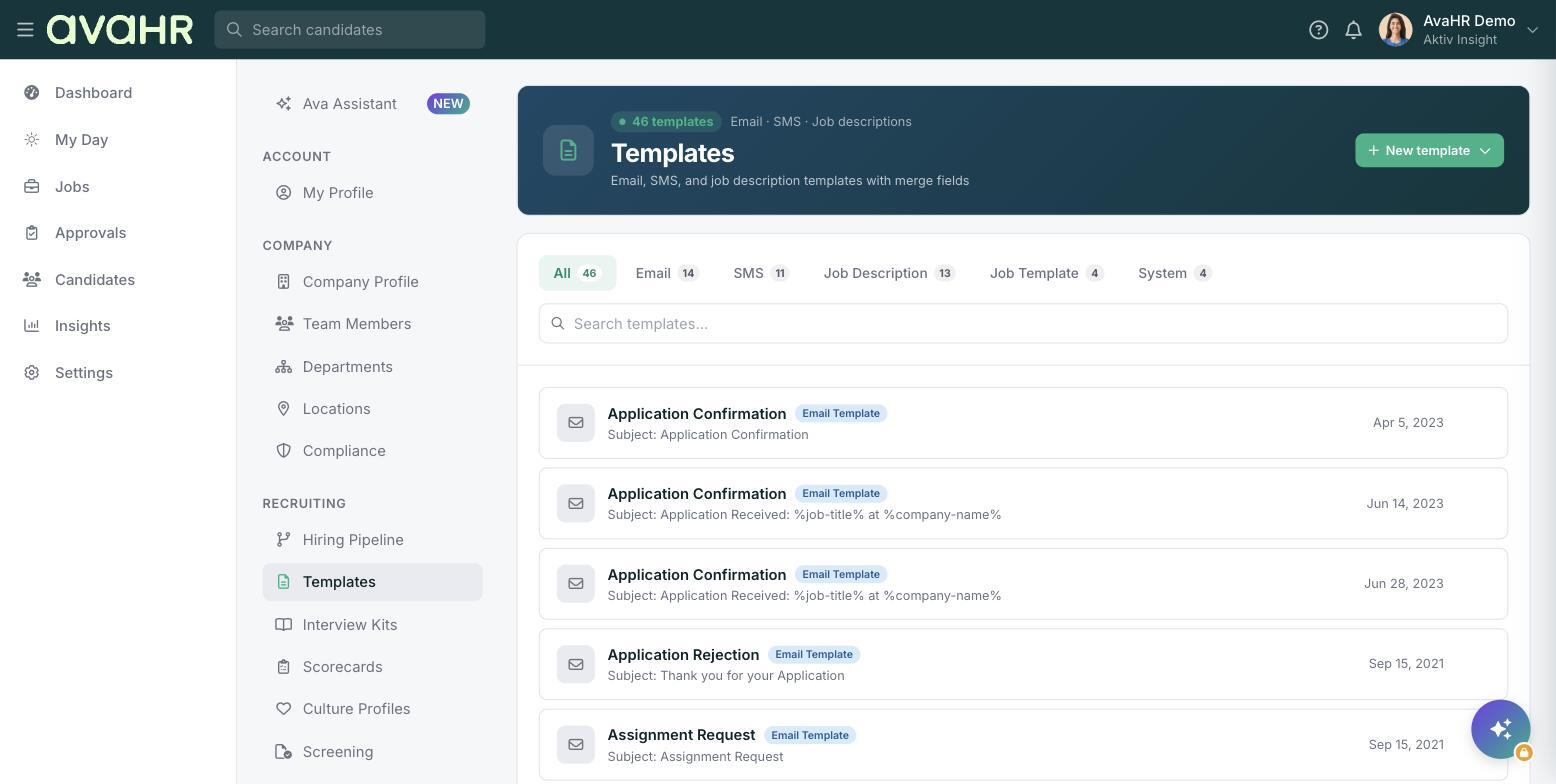
Email and SMS templates
Templates live at Settings > Templates. Click New template and choose Email or SMS. An email template has a name, subject, and body; an SMS template has a name and message (keep it under 160 characters for a single segment). Use the Insert Variable chips to add merge fields that fill in automatically: , , {}, , , , and .
Automatic and system messages
Pipeline stages can send a saved email or SMS template automatically when a candidate reaches them. System emails fire on events like a new application; you customize their subject and body rather than creating them from scratch.
Texting (SMS)
SMS is a paid add-on that gives you a dedicated number and two-way texting. Candidates can even apply by text. Texting requires consent: every recipient opts in, every message includes a way to reply STOP, and opt-outs are honored automatically.