
Everything about interviewing a candidate lives on their Interviews tab. Open a candidate's profile and select Interviews to schedule an interview, send a one-way kit, and record how it went. Interviews group into Upcoming, Sent (Pending), Video Responses, and Previous so you always know their status.
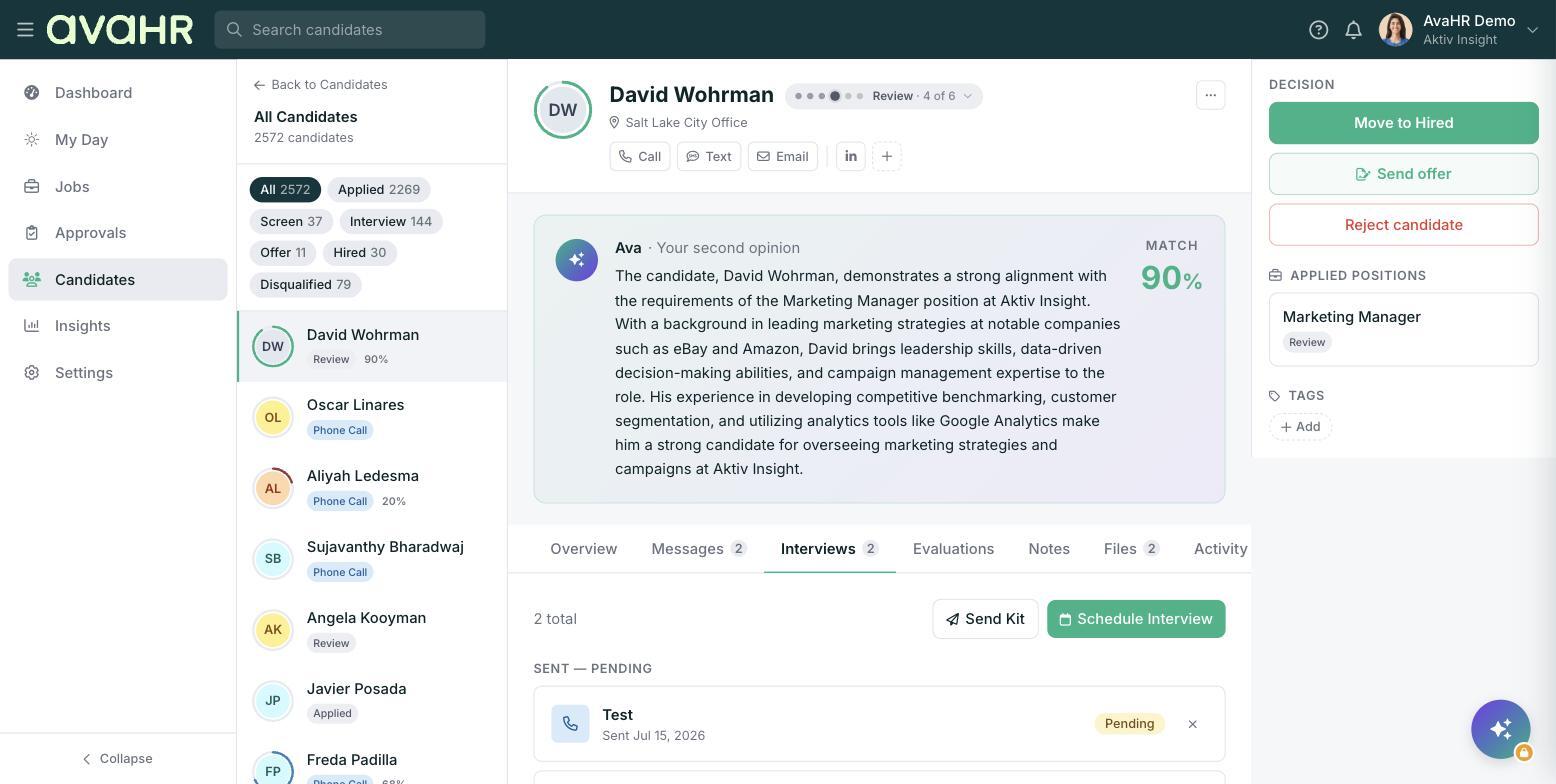
Schedule an interview
Click Schedule Interview and fill in the details:
- Kit. The interview kit to use.
- Date and time.
- Interviewer.
- Format. Phone, Virtual, In-Person, or One-Way Video.
- Meeting URL. Optional, for a virtual interview.
- Location and notes. Optional, helpful for in-person interviews.
Send a kit
Use Send Kit to send a one-way or self-serve kit the candidate completes on their own time. Their recorded answers come back under Video Responses.
Record an evaluation
After an interview, click Evaluate to open the scorecard:
- Rate each metric from 1 to 5.
- Add your notes.
- Pick a recommendation: Advance, Hold, or Reject.
Where feedback shows up
Completed evaluations appear on the candidate's Evaluations tab. That same tab is where Team Feedback (from scorecards your teammates fill in) and External Reviews (feedback from people you shared the candidate with outside AvaHR) show up, so you can compare everyone's input in one place.
Tip
Have every interviewer submit their own Evaluate scorecard before you meet to decide. Seeing each person's 1 to 5 ratings and Advance, Hold, or Reject side by side makes the decision much easier.