---
title: Moving Candidates through the Pipeline
description: Move candidates forward one at a time from the profile, or in bulk from the candidates list.
---
[Skip to content](https://knowledge.avahr.com/moving-candidates-through-the-pipeline#main-content)
English
Show submenu for translations

- [Tickets](https://23869753.hs-sites.com/tickets-view)
- [Sign out](https://23869753.hs-sites.com/_hcms/mem/logout)
Open main navigation
Close main navigation
- [Tickets](https://23869753.hs-sites.com/tickets-view)
- [Sign out](https://23869753.hs-sites.com/_hcms/mem/logout)
- English
Show submenu for translations
- [Go to avahr.com](https://avahr.com/)
[Go to avahr.com](https://avahr.com/)
Hello. How can we help you?
- There are no suggestions because the search field is empty.
1. [Help Center](https://knowledge.avahr.com/?hsLang=en)
2. [Managing Candidates](https://knowledge.avahr.com/managing-candidates?hsLang=en)
# Moving Candidates through the Pipeline
## Move candidates forward one at a time from the profile, or in bulk from the candidates list.
As you review applicants, you move them through the stages of your hiring pipeline, from Applied all the way to Hired. AvaHR gives you three easy ways to do this, whether you are working with one candidate or many at once.
### Move one candidate from the profile
Open the candidate's profile, then use either of these:
1. Click the pipeline progress chip in the header (for example "Review · 4 of 6") to open the "Move to stage" menu, and pick the stage you want.
2. Or, in the right-hand "Workspace" panel, click the "Move to \[next stage\]" button under "Decision" to advance them one step.
The header chip updates right away to show the new stage.
### Move several candidates at once
1. Go to **Candidates** in the left sidebar.
2. Select the candidates you want by checking the box to the left of each name.
3. In the toolbar that appears at the bottom of the screen ("N selected"), click "Move stage".
4. Choose the destination stage: Applied, Screen, Interview, Offer, Hired, or Disqualified.
All the selected candidates move to that stage together.
### Heads up: stages can trigger automations
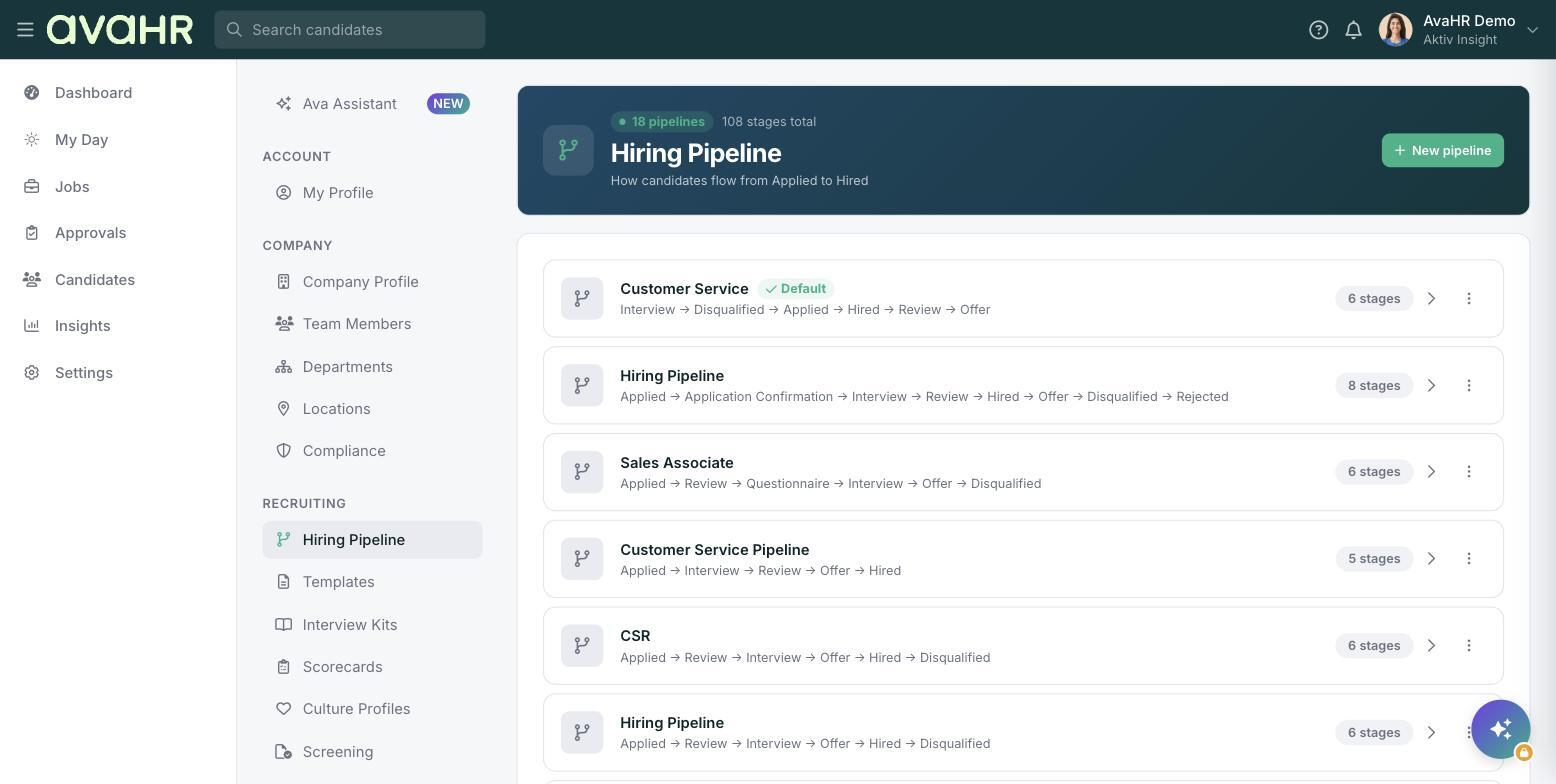
Moving a candidate into a stage fires any automations set on that stage. Depending on how your pipeline is configured, that can send an email or SMS, send a questionnaire, or request a scorecard from your team. You set these up in Settings under Hiring Pipeline.
**Tip:** If you want a candidate on a different job entirely, that is a position change rather than a stage move. See "How to Change a Candidate's Position".
- [Getting Started](https://knowledge.avahr.com/getting-started?hsLang=en)
- [Frequently Asked Questions](https://knowledge.avahr.com/frequently-asked-questions?hsLang=en)
- [Policies](https://knowledge.avahr.com/policies?hsLang=en)
- [Account Settings](https://knowledge.avahr.com/account-settings?hsLang=en)
- [Managing Candidates](https://knowledge.avahr.com/managing-candidates?hsLang=en#main-content)
- [Offers](https://knowledge.avahr.com/managing-candidates?hsLang=en#offers)
- [Manage Job Postings](https://knowledge.avahr.com/manage-job-postings?hsLang=en)
- [Team Collaboration](https://knowledge.avahr.com/team-collaboration?hsLang=en)
- [Insights](https://knowledge.avahr.com/insights?hsLang=en)
- [Integrations & Partners](https://knowledge.avahr.com/integrations-partners?hsLang=en)
- [WordPress Plugin](https://knowledge.avahr.com/wordpress-plugin?hsLang=en)
- [Messaging](https://knowledge.avahr.com/messaging?hsLang=en#main-content)
- [Templates](https://knowledge.avahr.com/messaging?hsLang=en#templates)
- [Recruiting](https://knowledge.avahr.com/recruiting?hsLang=en#main-content)
- [Screening](https://knowledge.avahr.com/recruiting?hsLang=en#screening)
[.png?width=117&height=24&name=AVA%20HR%20Logo%20(4).png "Chill listening crop-3")](http://vivahr.com)
Help Center
[mailto:email@email.com](mailto:email@email.com)
Copyright © 2026, AvaHR