
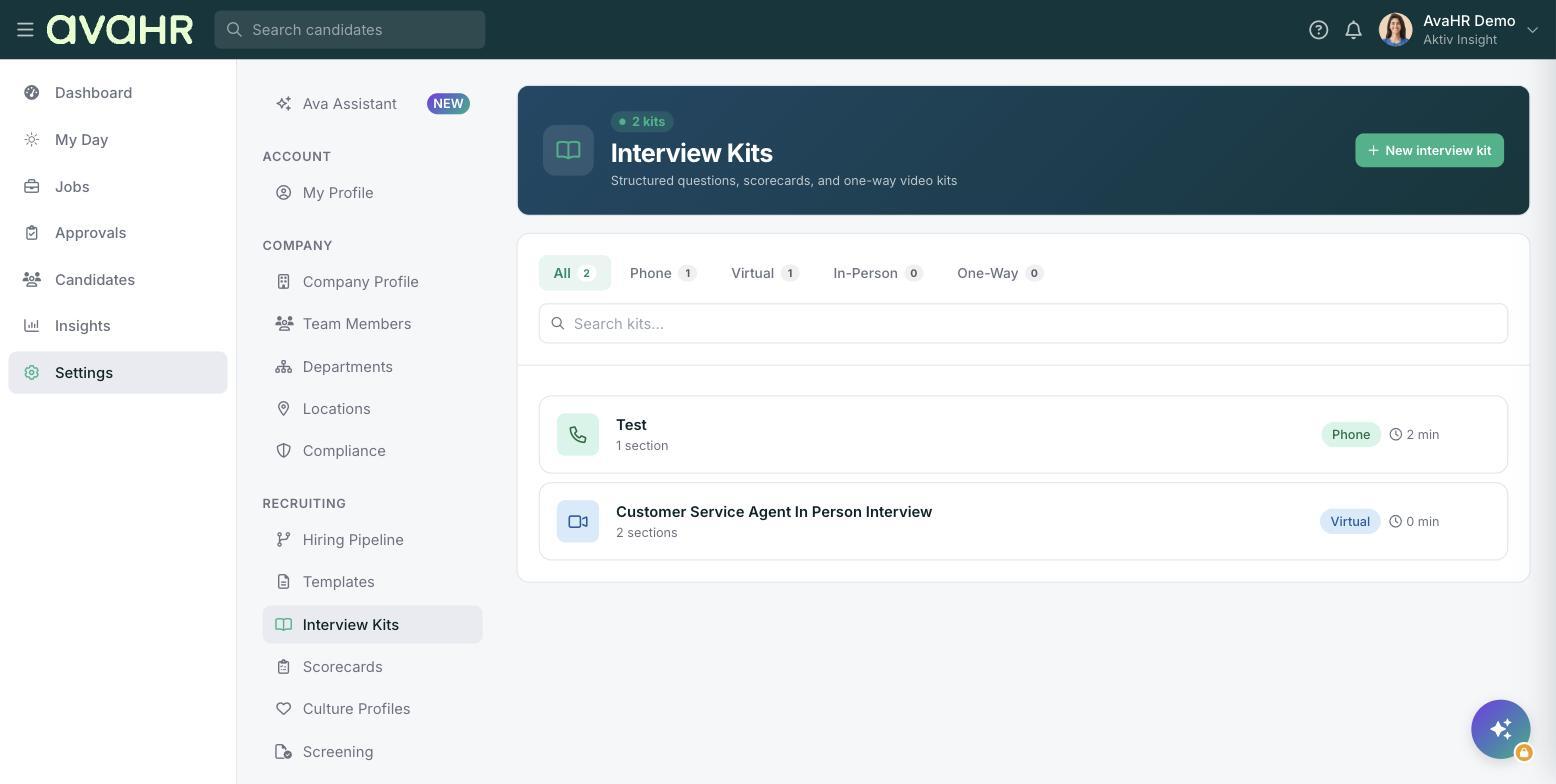
Interview Kits give your team a consistent way to interview. Each kit is a reusable set of structured questions, scorecards, and one-way video prompts, so everyone asks the same things and rates candidates the same way. You will find them under Settings > Interview Kits, described as "Structured questions, scorecards, and one-way video kits."
Format types
Every kit has a format, and you can filter the list by these tabs: All, Phone, Virtual, In-Person, and One-Way.
- Phone. For a phone screen or call.
- Virtual. For a video meeting.
- In-Person. For an on-site interview.
- One-Way. A self-serve video kit the candidate records on their own time.
Sections and duration
A kit is organized into sections, and each kit shows how many sections it has along with an expected duration. On the list, every kit displays its name, a "N section(s)" count, a format badge, and a duration so you can pick the right one at a glance.
Create an interview kit
- Go to Settings > Interview Kits.
- Click New interview kit.
- Give it a name, choose the format, and build out your sections and questions.
- Save it so it is ready to use from any candidate.
Using a kit from a candidate
You use kits from a candidate's Interviews tab:
- Send Kit. Send a one-way or self-serve kit for the candidate to complete on their own.
- Schedule Interview. Attach a kit to a scheduled interview so the interviewer has the questions and scorecard ready.
Tip
Build a kit for each stage you interview at, like a quick Phone screen and a longer In-Person round. That way anyone on your team can run a solid interview even if they have never met the candidate.