
This guide shows you how to connect Claude or ChatGPT to your AvaHR account. Once connected, you can ask about your jobs, candidates and interviews in a chat. If your admin allows it, the assistant can also draft assessments and screening questionnaires for you to review.
What the AvaHR connector does
- It sees only what you can see in AvaHR, with your role and permissions.
- It only reads, unless an admin allows changes and you choose to allow them when you connect.
- It never sends anything to a candidate, never moves or rejects a candidate, and never publishes a job.
Before you start
- An AvaHR login for the company you want to connect.
- A Claude or ChatGPT plan that lets you add a custom connector.
- To let the assistant create drafts: an AvaHR admin must first turn on Allow AI assistants to make changes (see Settings for admins below), and your role needs access to Screening settings.
Connect it
Use this address when your AI app asks for the connector's URL: https://mcp.avahr.com
In Claude
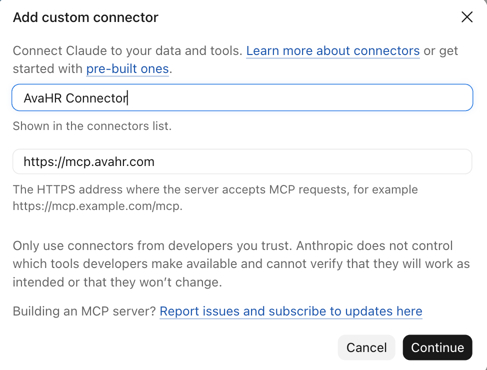
- Open Settings › Connectors and select Add custom connector.
- Name it AvaHR, paste
https://mcp.avahr.com, and select Continue. - Leave the sign-in options as Claude detects them (Sign in now and Register automatically), and continue.
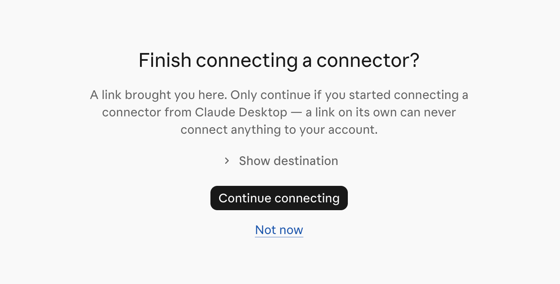
- If Claude asks Finish connecting a connector?, select Continue connecting.
- Sign in to AvaHR, then complete the AvaHR consent screen (below).
In ChatGPT
- Open Settings › Apps & Connectors.
- Add a custom connector named AvaHR with the address
https://mcp.avahr.com. - Sign in to AvaHR when asked, then complete the consent screen.
The AvaHR consent screen
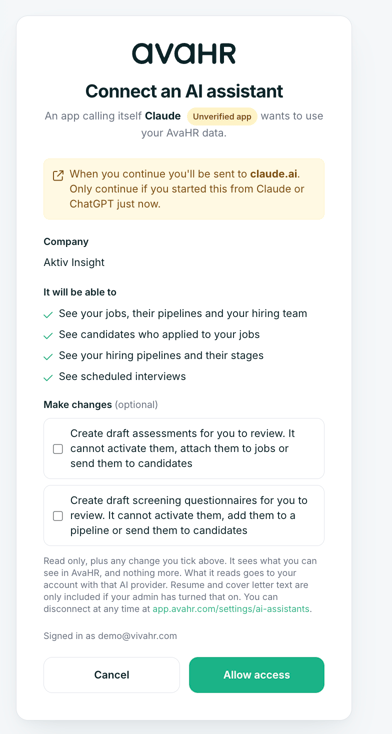
- Choose your company. If your login belongs to more than one company, pick the one this connection is for.
- Check what it will be able to see: jobs, candidates, hiring pipelines and interviews.
- Optional: tick the boxes under Make changes. These appear only if your admin allows changes, and each starts unticked: Create draft assessments and Create draft screening questionnaires. A greyed-out box means your role doesn't allow that change.
- Select Allow access. You're returned to Claude or ChatGPT.
Check that it worked
Ask the assistant: "List my active jobs in AvaHR." It should answer with your jobs. In AvaHR, go to Settings › AI assistants. Your connection is listed as Read only, or Read & write if you ticked a box.
What the assistant can see
| Area | What it can look up |
|---|---|
| Jobs | Your job postings, with status, location, pay, the full description and how many candidates each has. |
| Candidates | Applicants, their contact details, the job they applied to, their stage, rating and tags. Resume and cover letter text only if your admin has turned it on. |
| Pipelines | Your pipeline templates and each job's hiring stages. |
| Interviews | Scheduled interviews, up to 90 days at a time. |
| Hiring team | Active team members, with titles and email addresses. |
Things you can ask
- Which of my jobs have the most new applicants this week?
- Who is in the interview stage for the Warehouse Associate job?
- What interviews do we have next Tuesday?
- Draft a screening questionnaire for a forklift operator. Reject anyone who can't lift 50 lb.
- Create a 10-question assessment on basic Excel skills.
Letting the assistant create drafts
With permission, the assistant can create two kinds of draft. Both stay inactive until someone on your team reviews and activates them.
- Draft assessments: skills tests with multiple-choice, true/false, short-answer, written and file-upload questions. The assistant sets the correct answers. Check them, because candidates are scored against them.
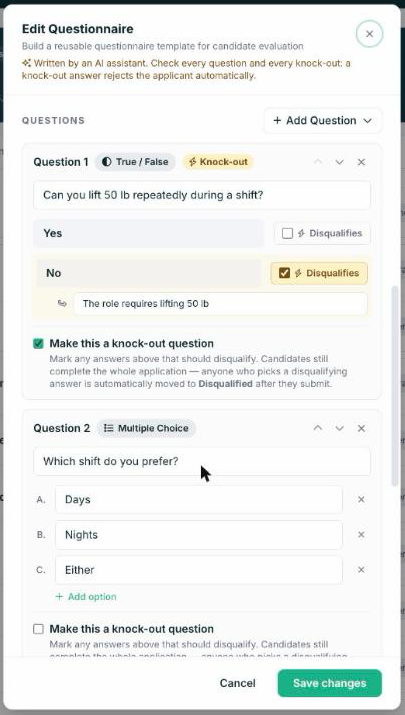
- Draft screening questionnaires: yes/no, single and multiple choice, short and long answer, and file-upload questions. The assistant can mark knock-out answers, which reject an applicant automatically.
How review works
- After it creates a draft, the assistant gives you a review link. It opens the draft in Settings › Screening.
- The draft is labelled Created by AI assistant, with anything to check highlighted: knock-outs, or questions that may touch a protected topic.
- Edit anything you want, then turn on its switch to activate it. AvaHR asks you to confirm and lists the knock-outs.

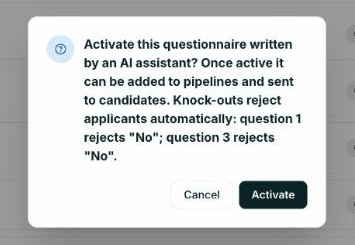
A draft can't reach candidates until it's activated. An AI-written questionnaire doesn't appear in pipeline automations, can't be sent from a candidate's page, and can't be attached through Zapier until someone activates it.
Built-in safeguards
- Protected topics: AvaHR refuses a questionnaire that asks about a protected characteristic outright, such as date of birth, children or citizenship, and creates nothing. If a knock-out depends on one (for example, "at least 21 years of age"), AvaHR keeps the question but turns the knock-out off and tells you why.
- Inverted knock-outs: a knock-out that rejects people who answer "Yes" to a "Do you…?" question is flagged, in case it's the wrong way round.
- No duplicates: if the assistant sends the same draft twice within a few minutes, you get the first one back.
- Limits: each connection can create 10 drafts an hour, and each company can receive 30 AI-created drafts of each kind per day.
Settings for admins
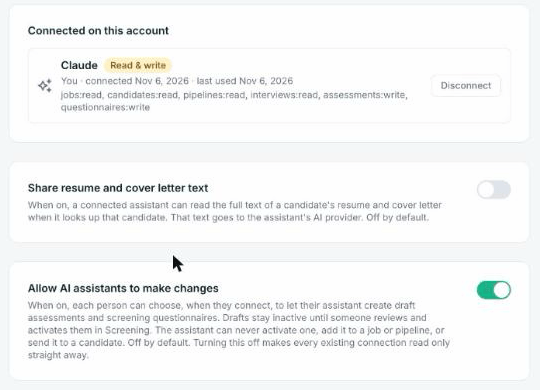
Admins with access to Integrations settings manage the connector in Settings › AI assistants.
- Share resume and cover letter text (off by default) lets the assistant read the full text of a candidate's resume and cover letter. That text goes to the AI provider.
- Allow AI assistants to make changes (off by default) lets each person choose, when they connect, to allow draft assessments and questionnaires. Turning it off makes every connection read-only immediately. After it's turned back on, people reconnect and tick the box again.
Admins see every connection on the account and can disconnect any of them. Other users see only their own.
If you work for more than one company
Each connection is tied to the one company you pick on the consent screen. Switching companies inside AvaHR doesn't change what the assistant sees. To use a different company, disconnect AvaHR in your AI app, connect again, and pick the other company. Your role in each company applies separately.
How to disconnect
In AvaHR, go to Settings › AI assistants, find the connection, select Disconnect, and confirm. It stops working immediately.
Privacy and safety
- Information the assistant looks up is sent to your AI provider so it can answer you. Use the connector only in an AI app your company has approved for candidate data.
- AvaHR records each request the assistant makes (which tool and when), but not what you typed in the chat or the text of candidate records.
- Text a candidate wrote, such as a resume, is treated as information about them, never as instructions to the assistant.
- If someone leaves your team or loses access, their connection stops working on its next request.
Troubleshooting
| The assistant says | What to do |
|---|---|
| This connection was disconnected. Reconnect to continue. | Connect AvaHR again in your AI app. |
| This AvaHR account does not allow AI assistants to make changes. | Ask an admin to turn on Allow AI assistants to make changes, then reconnect and tick the box. |
| This AvaHR connection was not given access to questionnaires (or assessments). | The box wasn't ticked when you connected. Disconnect, connect again, and tick it. |
| Your AvaHR role does not allow this change. | Your role doesn't include Screening settings. Ask an admin to update your role. |
| This AvaHR account is read only (Data Storage plan). | The assistant can still read. Drafts need an active plan. |
| This account can no longer use the AvaHR connector. | Your access to the company ended, or the account isn't active. Check with your AvaHR admin. |
| AI assistants have created 30 draft questionnaires on this account in the last 24 hours. | Try again tomorrow, or create it yourself in AvaHR. |
| This questionnaire asks about Age… Nothing was created. | Ask the assistant to remove that question and try again. |
The Make changes boxes don't appear when I connect. The admin setting is off for that company.
My company isn't listed on the consent screen. The connector works for companies on an active, trial, free or Data Storage plan where you're an active team member. Contact your admin.
Still having issues? Contact AvaHR support. Tell us which AI app you're using, the company, and the exact message the assistant showed.