
Every candidate is tied to the job they applied to, but sometimes a person is a better fit for a different role, or you want to reuse a great applicant for a new opening. Moving a candidate to another position takes just a moment.
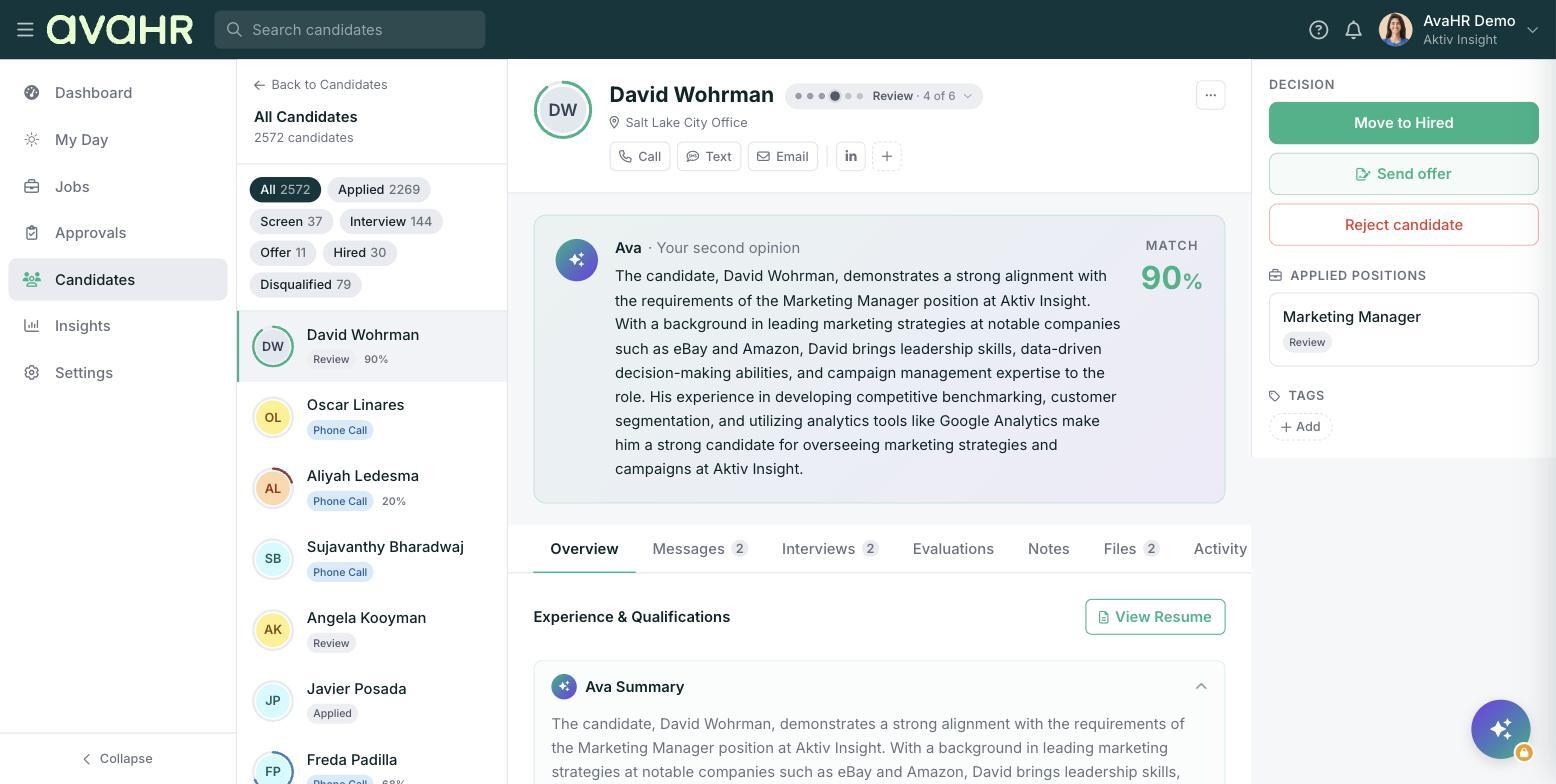
Move one candidate from their profile
- Open the candidate's profile.
- Click the "..." menu in the header.
- Choose "Move to Position".
- Pick the job you want to move them to.
The candidate lands in the first stage of the chosen job's pipeline. You can see their roles in the "Applied Positions" section of the "Workspace" panel.
Move several candidates at once
- Go to Candidates in the left sidebar.
- Check the box next to each candidate you want to move.
- In the bottom toolbar ("N selected"), open "More" and choose "Add to a job".
- Select the job.
Each selected candidate is added to the first stage of that job's pipeline.
Good to know: Changing a candidate's position places them in a new job's pipeline. That is different from moving a candidate between stages of the same job. For that, see "Moving Candidates Through the Pipeline".
Tip: Because a moved candidate starts in the first stage, give the new job's early-stage automations a moment. Entering that stage can trigger an email, SMS, questionnaire, or scorecard request if your pipeline is set up that way.