---
title: Creating an Email Template
description: Save a reusable email with merge fields so your team sends consistent, personal messages fast.
---
[Skip to content](https://knowledge.avahr.com/creating-an-email-template#main-content)
English
Show submenu for translations

- [Tickets](https://23869753.hs-sites.com/tickets-view)
- [Sign out](https://23869753.hs-sites.com/_hcms/mem/logout)
Open main navigation
Close main navigation
- [Tickets](https://23869753.hs-sites.com/tickets-view)
- [Sign out](https://23869753.hs-sites.com/_hcms/mem/logout)
- English
Show submenu for translations
- [Go to avahr.com](https://avahr.com/)
[Go to avahr.com](https://avahr.com/)
Hello. How can we help you?
- There are no suggestions because the search field is empty.
1. [Help Center](https://knowledge.avahr.com/?hsLang=en)
2. [Messaging](https://knowledge.avahr.com/messaging?hsLang=en)
3. [Templates](https://knowledge.avahr.com/messaging?hsLang=en#templates)
# Creating an Email Template
## Save a reusable email with merge fields so your team sends consistent, personal messages fast.
Email templates keep your messages to candidates consistent and save you from retyping the same note again and again. You write the email once, drop in merge fields for the personal touches, and reuse it whenever you need it.
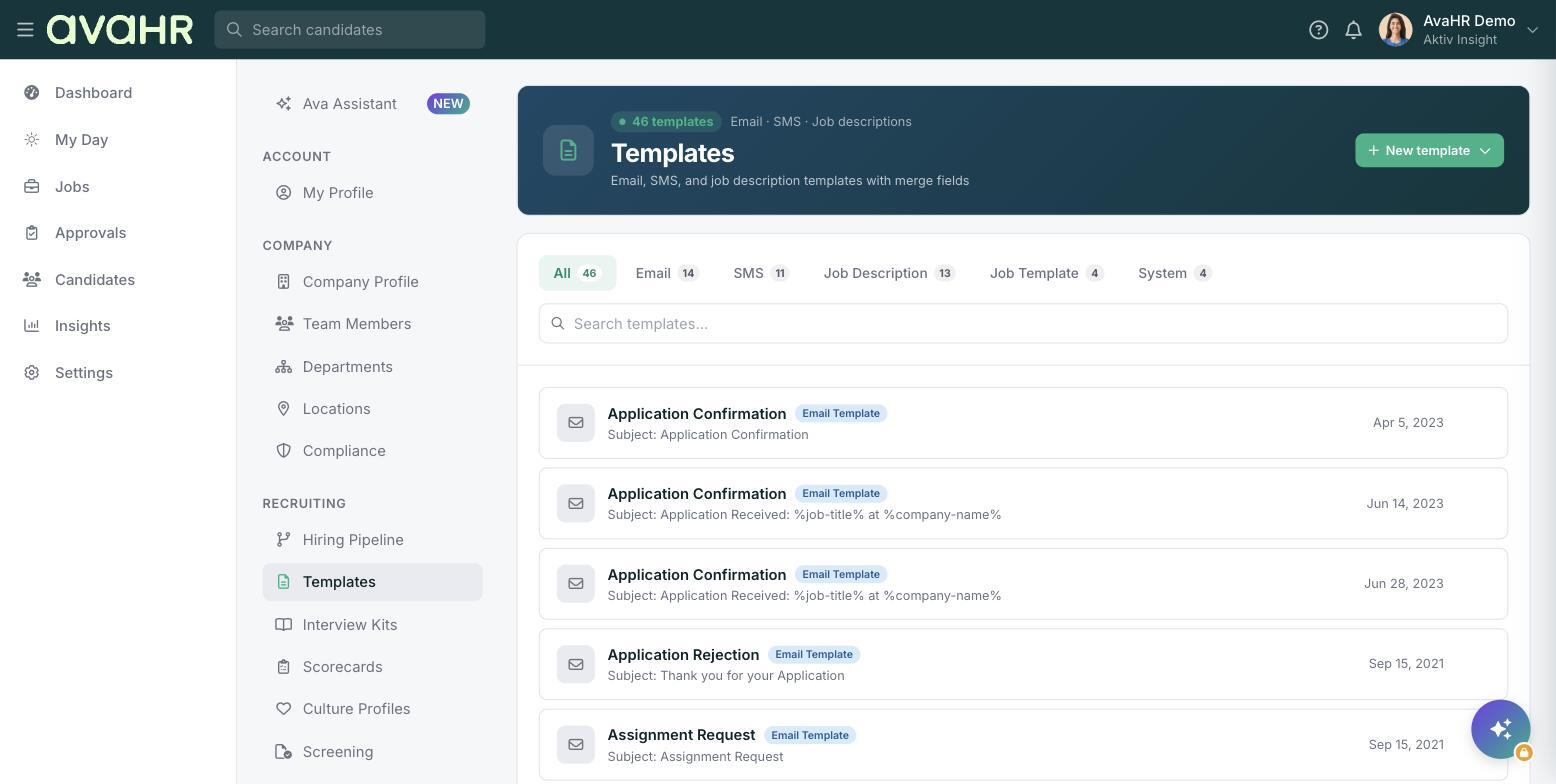
### Where templates live
Go to **Settings**, then **Templates** under RECRUITING. The Templates page holds all of your reusable content on tabs: **All**, **Email**, **SMS**, **Job Description**, **Job Template**, and **System**. Select the **Email** tab to see your email templates.
### Create a new email template
1. On the Templates page, click **New template** and choose **Email template**.
2. Enter a **Template Name** so you can find it later.
3. Enter the **Subject Line**.
4. Write your message in the rich-text **Email Body**.
5. Click **Save**.
### Add personal touches with merge fields
Merge fields fill in candidate and job details automatically when the email is sent, so a single template still feels personal. Place your cursor where you want a detail to appear, use the **Insert Variable** control, and pick the field you want. You can use:
- **{}**
For example, starting your email with **Hi** greets each candidate by name without any extra work from you.
### Using your template
Once saved, your template is ready to use when you message someone. Open a candidate, go to the **Messages** tab, keep the toggle on **Email**, and click **Templates** to drop your saved email into the message. Review it, make any small edits, and send.
### Editing or removing a template
On the Templates page, use a template's row menu to **Edit**, **Duplicate**, or **Delete** it. Duplicating is a quick way to start a new template from one you already like.
- [Getting Started](https://knowledge.avahr.com/getting-started?hsLang=en)
- [Frequently Asked Questions](https://knowledge.avahr.com/frequently-asked-questions?hsLang=en)
- [Policies](https://knowledge.avahr.com/policies?hsLang=en)
- [Account Settings](https://knowledge.avahr.com/account-settings?hsLang=en)
- [Managing Candidates](https://knowledge.avahr.com/managing-candidates?hsLang=en#main-content)
- [Offers](https://knowledge.avahr.com/managing-candidates?hsLang=en#offers)
- [Manage Job Postings](https://knowledge.avahr.com/manage-job-postings?hsLang=en)
- [Team Collaboration](https://knowledge.avahr.com/team-collaboration?hsLang=en)
- [Insights](https://knowledge.avahr.com/insights?hsLang=en)
- [Integrations & Partners](https://knowledge.avahr.com/integrations-partners?hsLang=en)
- [WordPress Plugin](https://knowledge.avahr.com/wordpress-plugin?hsLang=en)
- [Messaging](https://knowledge.avahr.com/messaging?hsLang=en#main-content)
- [Templates](https://knowledge.avahr.com/messaging?hsLang=en#templates)
- [Recruiting](https://knowledge.avahr.com/recruiting?hsLang=en#main-content)
- [Screening](https://knowledge.avahr.com/recruiting?hsLang=en#screening)
[.png?width=117&height=24&name=AVA%20HR%20Logo%20(4).png "Chill listening crop-3")](http://vivahr.com)
Help Center
[mailto:email@email.com](mailto:email@email.com)
Copyright © 2026, AvaHR