
Filters help you cut a long candidates list down to just the people you care about right now. You can narrow by stage, source, and location, combine that with the status tabs, and even save the result so you do not have to rebuild it every time.
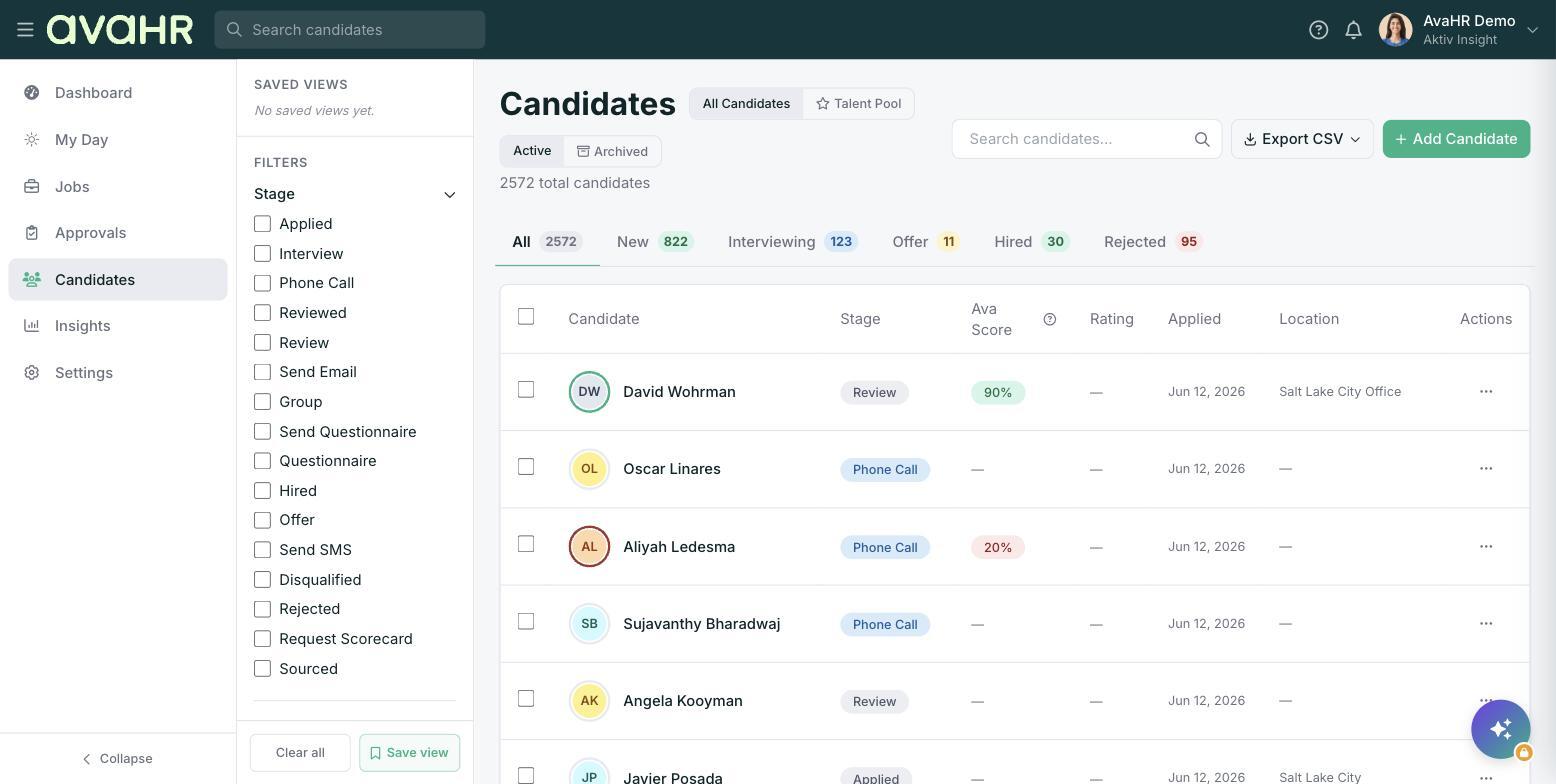
Using the Filters sidebar
- Go to Candidates in the left sidebar.
- In the "Filters" panel on the left, set what you need:
- Stage: Check one or more pipeline stages.
- Source: Where the candidate came from.
- Location: Filter by where they are.
- The list updates as you choose. To reset, click "Clear all".
Status tabs and toggles
Above the list, quick status tabs with counts let you jump to All, New, Interviewing, Offer, Hired, or Rejected. You can also toggle between "All Candidates" and "Talent Pool" (candidates not tied to a job), and between "Active" and "Archived". These work alongside your filters to narrow things further.
Saving a view
Found a filter combination you will use again, like "Interviewing candidates in Dallas from Indeed"? Click "Save view" in the "Saved Views" section of the sidebar. Your saved view then sits in that list for one-click access later.
Tip: Saved Views are great for recurring routines, such as "New applicants this week" or "Offers waiting on a response", so your team always opens to the same focused list.