
Locations are your office locations for the team. Add a location once, and you can attach it to any on-site or hybrid job so candidates know where the work happens.
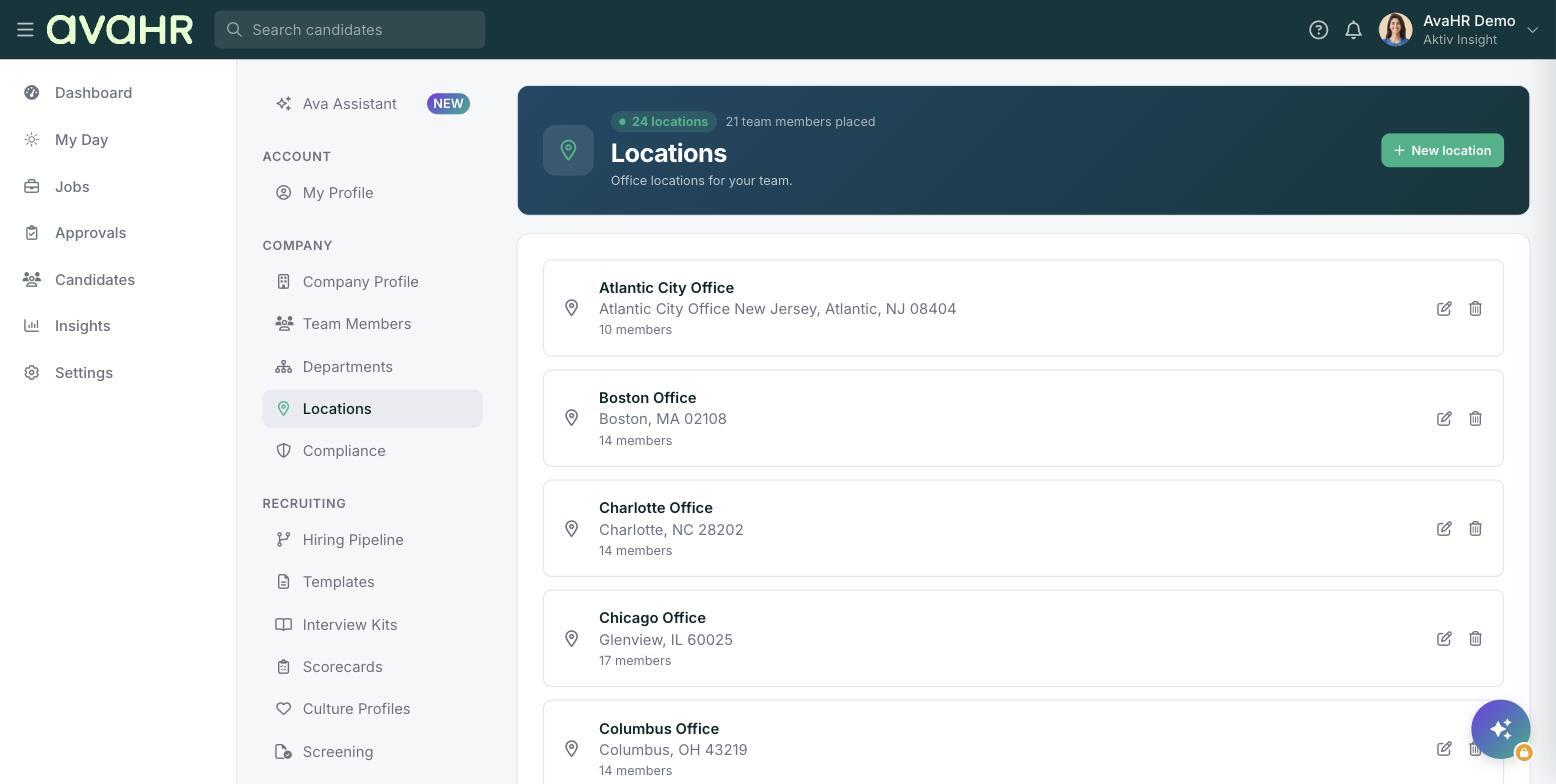
Add a location
- In the left sidebar, go to Settings.
- Under COMPANY, select Locations.
- Select New location.
- Enter the location name and address, then save.
Manage locations
Each location shows a name, an address, and a member count. Use the edit and delete controls to update a location or remove one you no longer use.
Use a location on a job
When you post a job, set Where is this job? on Step 1 Job Basics. If you choose On-site or Hybrid, an Office location field appears where you pick a saved location.
Tip: Add all of your regular offices up front so the right one is ready to choose on every job.